HomeHow It WorksFeaturesPricingFAQSupport Sign in ↓ Download for Windows
FEATURES

A closer look at the Jolnova workflow.

From source tracking to review-ready vertical clips — here is what the application actually does today. Nothing on this page is planned, coming soon or in beta.

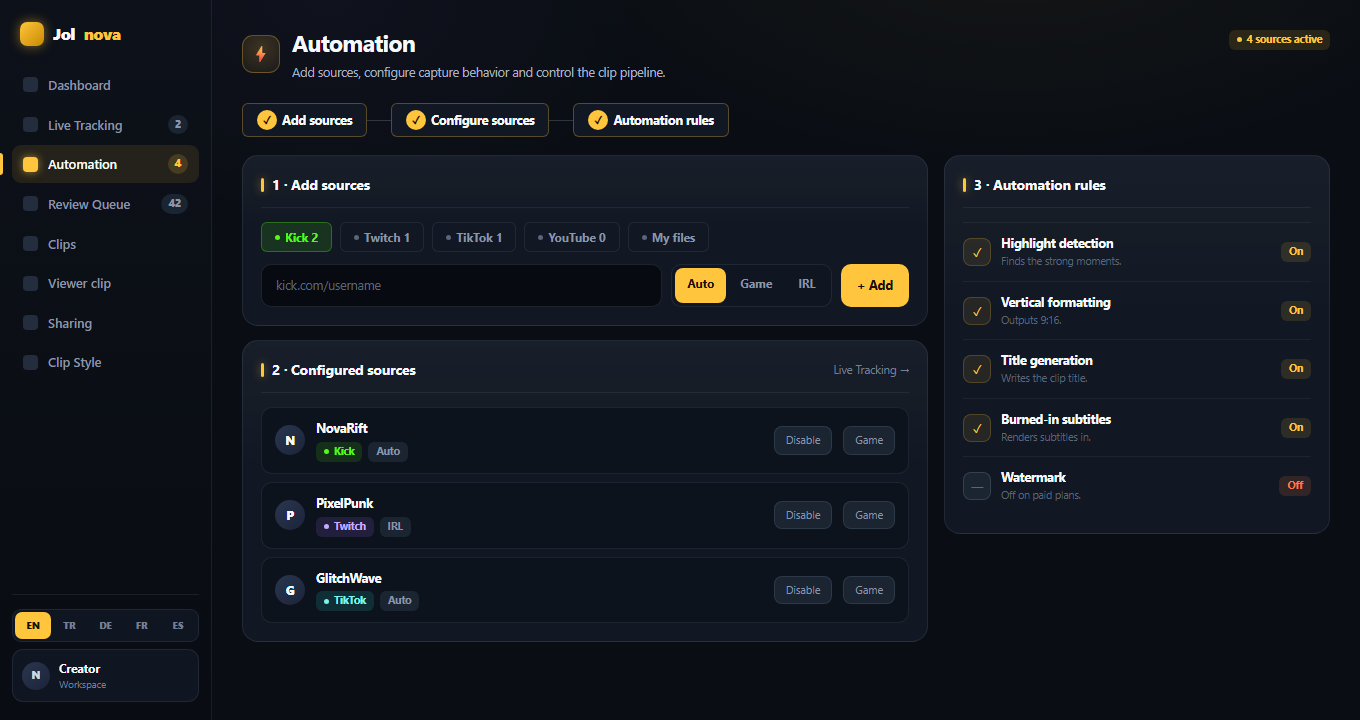
Kick — live tracking Twitch — live tracking TikTok — live tracking YouTube — live tracking My Files — your own videos
LIVE TRACKING

Know what is live, what is recording and what went quiet

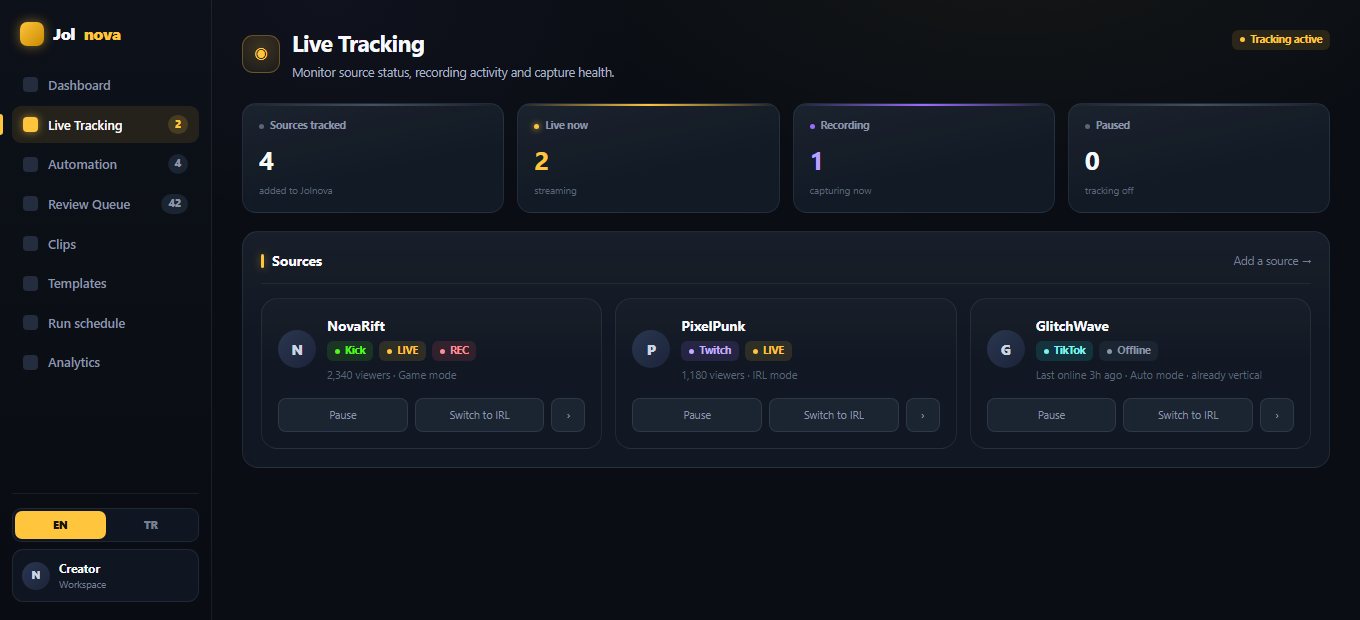
One page shows every source you track, with its live state, recording state and capture mode. Kick, Twitch, TikTok and YouTube are all tracked live.

  • Live, Offline, Recording and Paused states
  • Viewer count when the platform reports it
  • Pause and resume per source
  • Switch between Auto, Game and IRL capture
  • Record several streams at once — 1 on Starter, 2 on Creator, 4 on Pro
A live recording uses roughly 5.6 GB per stream per hour, so the concurrency limit is about your disk, not about the licence.
Live Tracking
Live tracking view showing tracked sources and recording state
MOMENT DETECTION

Three signals decide what becomes a clip

Detection runs on your own machine and costs nothing per clip. Jolnova reads three things from the recording and cuts a candidate where they line up.

  • Chat density — how fast messages arrive compared with the calm baseline
  • Audio spikes — laughter, shouting, a sudden jump in loudness
  • Speech content — what is actually being said, from the transcript
  • Detection sensitivity is a setting: Few, Balanced or Many
There is no AI score and no quality grade on a clip. The AI writes one thing: the title of a clip you approved.
Review Queue
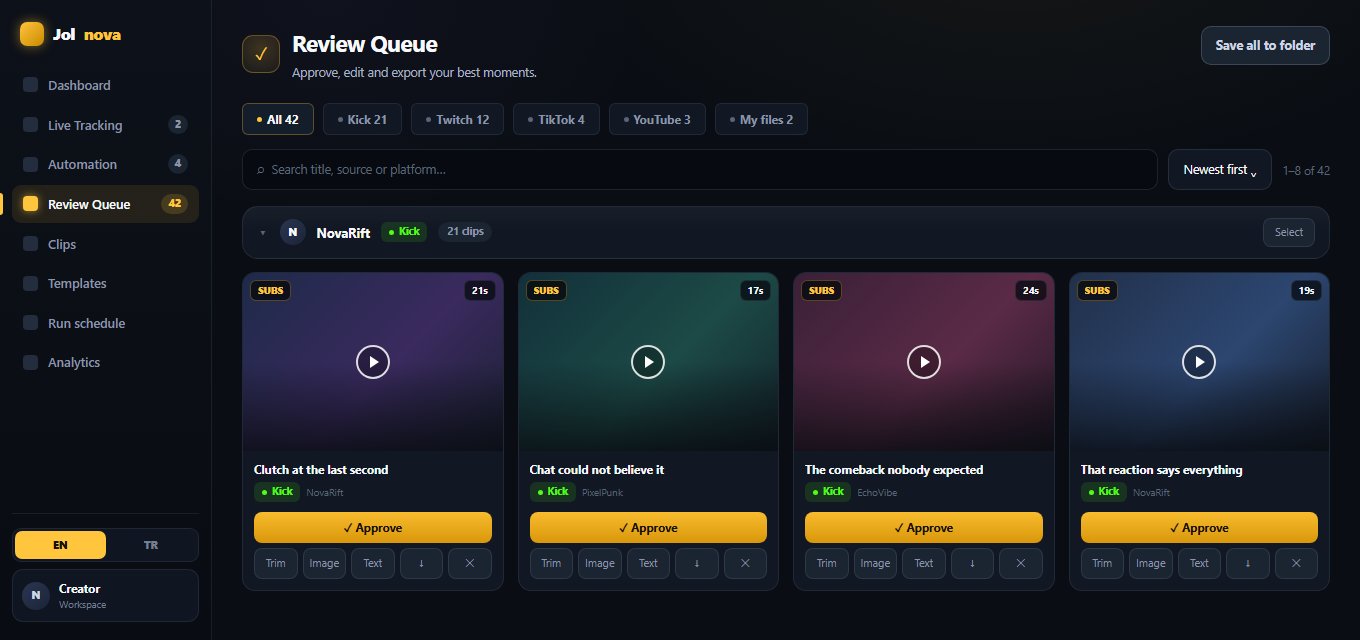
Review queue with generated clips ready for approval
REVIEW QUEUE

One queue for everything Jolnova produced

Clips are grouped by source and paginated, so a queue with hundreds of items stays fast. Filter, search, select several at once and act on them together.

  • Filter by Kick, Twitch, TikTok, YouTube or local files
  • Search across clip titles and sources
  • Sort by newest, oldest or duration
  • Select multiple clips and approve or reject as a batch
  • Delete every clip from one source in one action
Clips
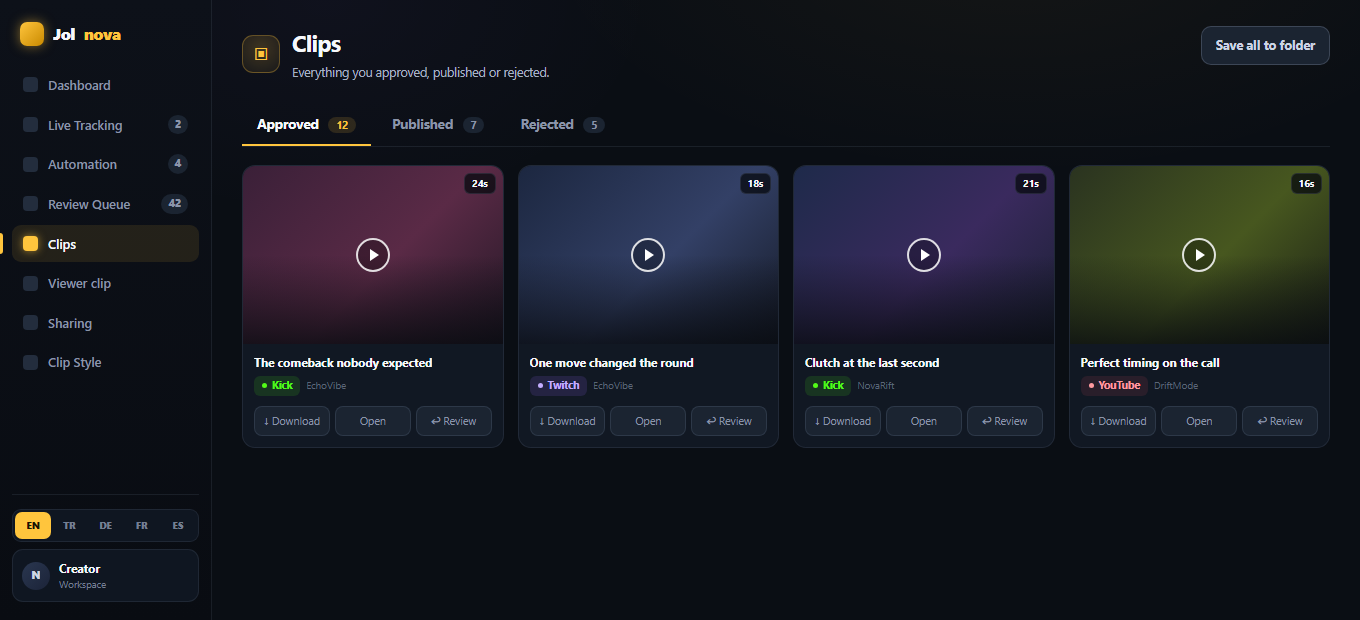
Clips library with approved, published and rejected tabs
RUN SCHEDULE

Decide the days and hours Jolnova is allowed to work

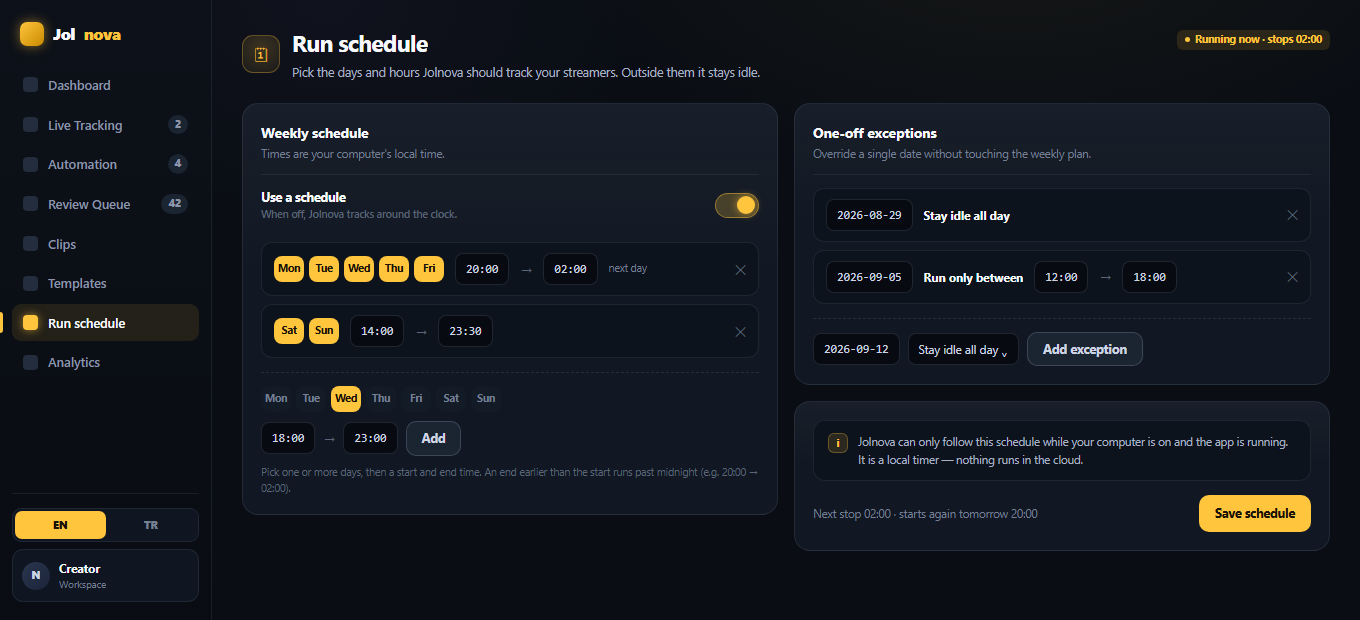
Your streamers go live at certain hours. Outside them there is no reason for the application to burn disk and bandwidth. Set a weekly plan and Jolnova stays idle the rest of the time.

  • Weekly time ranges, several days per range
  • Ranges that pass midnight — 20:00 to 02:00 works
  • One-off exceptions: stay idle all day, or run only between two hours
  • Times follow your computer's local clock, so daylight saving takes care of itself
  • Turn the schedule off and Jolnova tracks around the clock again
It is a local timer. Jolnova follows the schedule while your computer is on and the app is running — nothing runs in the cloud.
Run schedule
Run schedule with a weekly plan and one-off exceptions
LINK PROCESSING

Paste a link, get clips

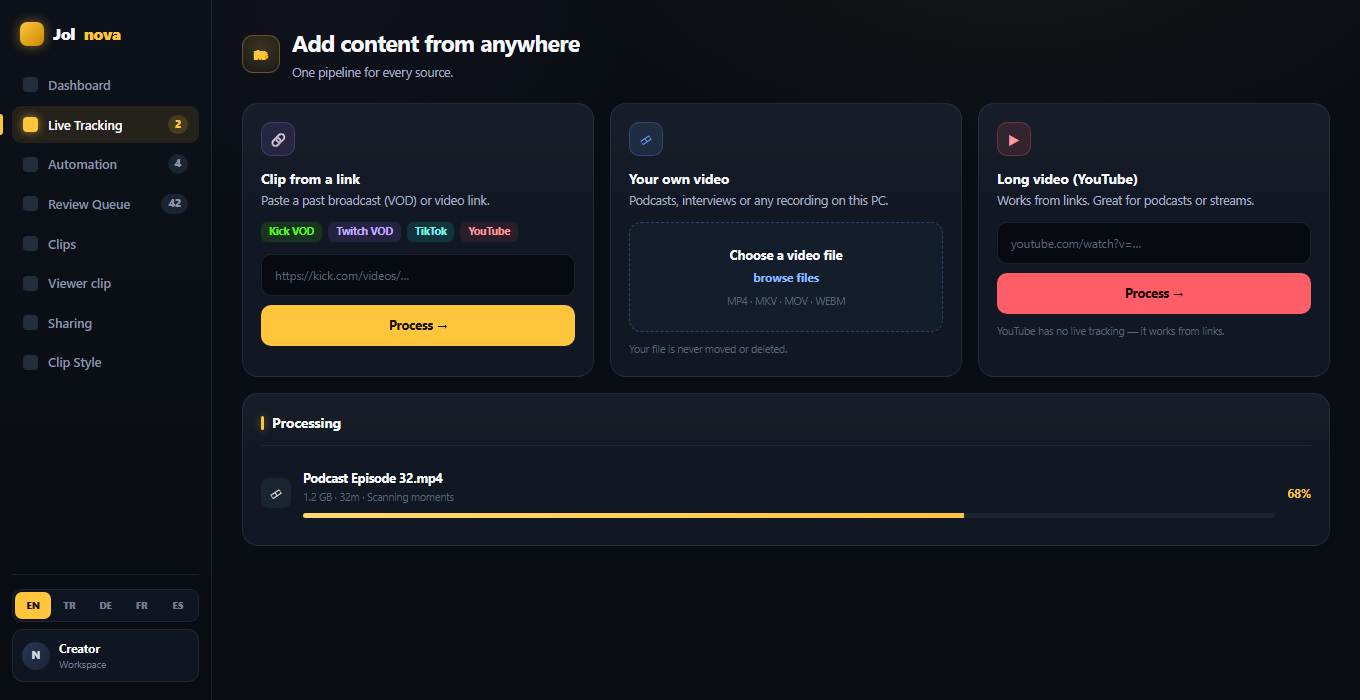
Past broadcasts and uploaded videos go through the same pipeline as live recordings. Progress is shown while the video downloads, gets scanned and turns into clips.

  • Kick VOD links
  • Twitch VOD links
  • TikTok video links
  • YouTube videos and past streams
  • Downloaded → scanned → clips land in the queue
Automation
Automation page with the three-step source setup
MY FILES

Your own recordings work too

Pick any video sitting on your computer — a podcast, an interview, an old recording — and Jolnova runs the same detection and formatting over it.

  • MP4, MKV, MOV and WEBM
  • The file is read where it is
  • Your original is never moved or deleted
  • Included on every plan — your own files are never counted as a platform
Processing happens on your machine; only the AI text step contacts a service.
My files
Add content from a link, a local file or a YouTube video
CLIP LAYOUT

Five ways to fill a 9:16 frame

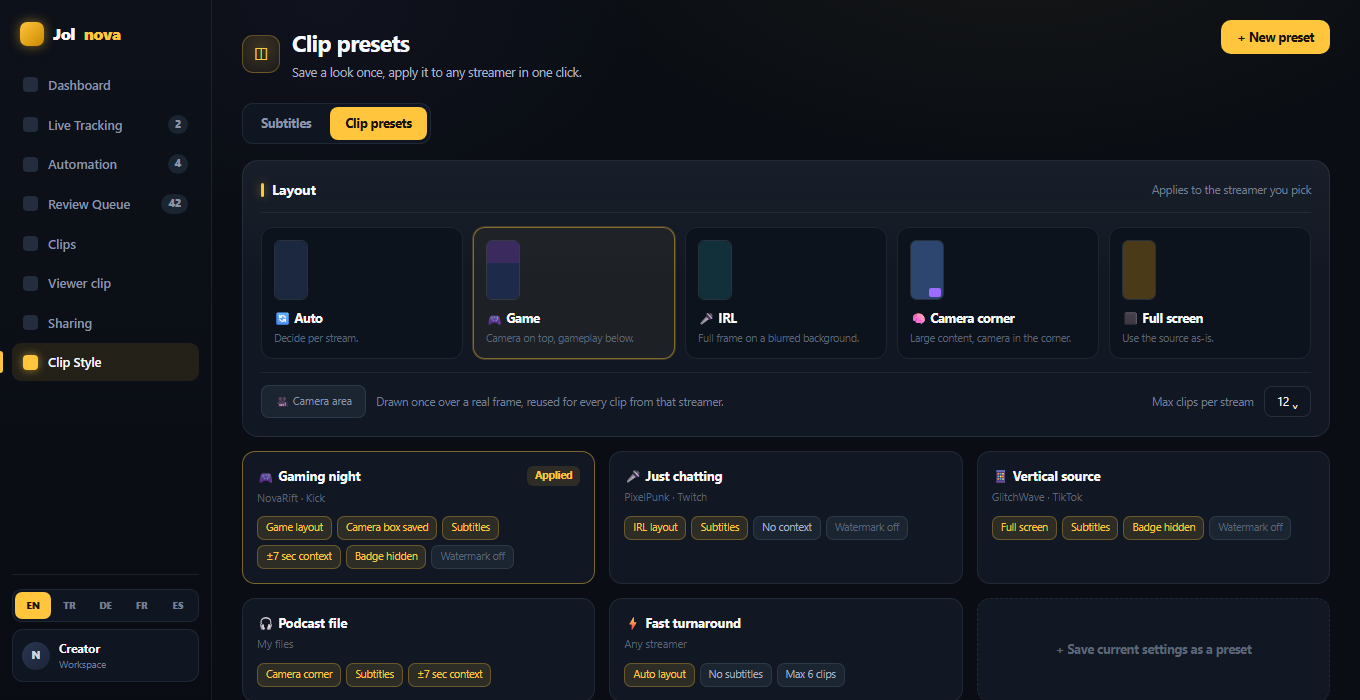
A clip is framed for vertical, not cropped down to it. Pick the layout per streamer, or let Auto decide from the source.

  • Auto — decide per stream
  • Game — camera on top, gameplay below
  • IRL — full frame on a blurred background
  • Camera corner — large content with the camera in the corner
  • Full screen — use the source as it is, ideal for TikTok
Capture modes
Vertical 9:16 clip output examples
CAMERA REGION

Tell it where the camera is — or let it find one

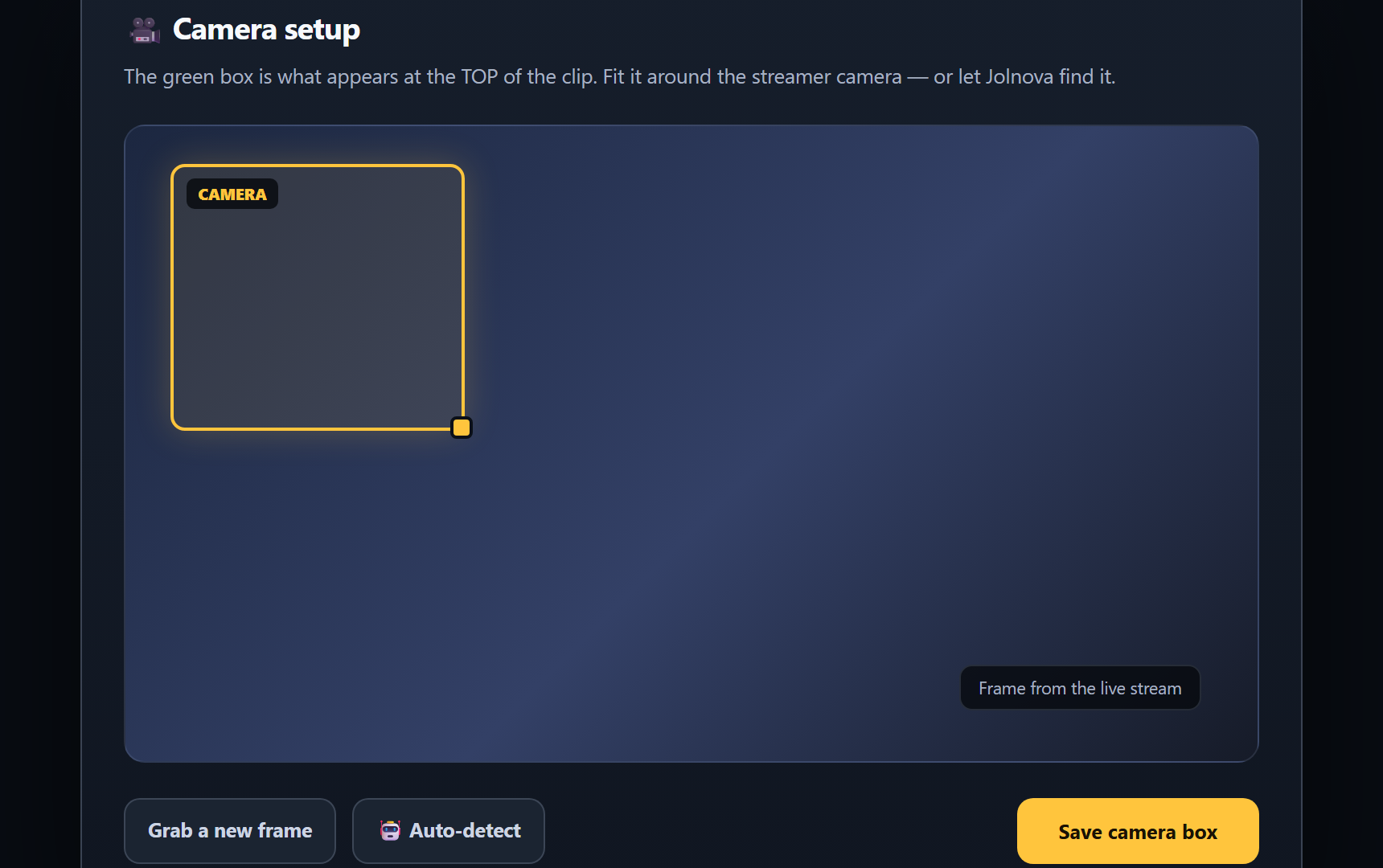
In Game mode the streamer camera goes on top and the gameplay underneath. Jolnova can detect the camera box itself, and when a layout is unusual you draw the box over a real frame from the stream.

  • Automatic camera detection
  • Draw and resize the box yourself
  • Corner presets for the four usual positions
  • Positioned over an actual frame from the source
  • Saved per source and reused for every clip
Camera setup
Camera region setup with the camera box drawn over a stream frame
CLIP PRESETS

Save a look once, apply it to any streamer

A preset is a named bundle of settings you already use: layout, camera box, clip limit per stream, subtitles, watermark, extra context and the platform badge. Apply it to a streamer in one click instead of repeating the same setup by hand.

  • Layout and camera box per streamer
  • Maximum clips per stream
  • Subtitle, watermark, clip context and platform badge preferences
  • Rename, duplicate and delete your own presets
  • Saving presets is available on every plan, including the free trial
A preset never bypasses a plan limit. If it carries a setting your plan does not include, the preference is stored but stays inactive.
Clip presets
Clip presets with layout options and saved preset cards
SUBTITLES

Readable with the sound off — and fixable when the transcript is wrong.

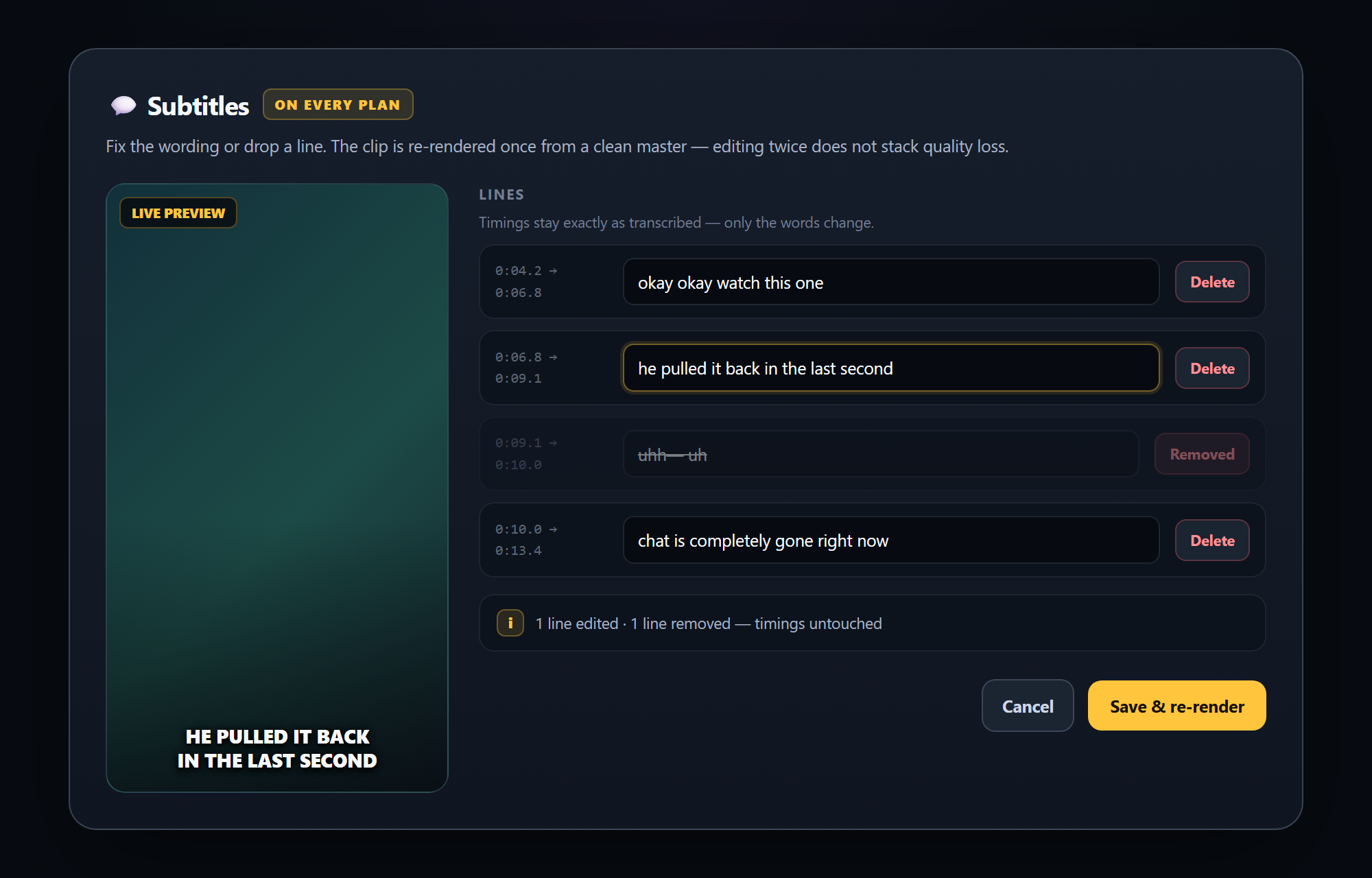
Speech is transcribed on your machine and rendered into the picture in a single encode, so there is no second-generation quality loss. Transcription is never perfect, so the text stays editable afterwards.

Subtitle text
Subtitle editor with the transcribed lines open for editing

Fix the words

EVERY PLAN

Correct a misheard word, rewrite a whole line, or delete a line you do not want on screen. Timings stay exactly as transcribed — only the words change.

  • Edit any line in place
  • Delete a line and it disappears from the video
  • Re-rendered once from a clean master, so editing twice does not stack quality loss
  • Included on every plan — fixing your own text is not a paid upgrade
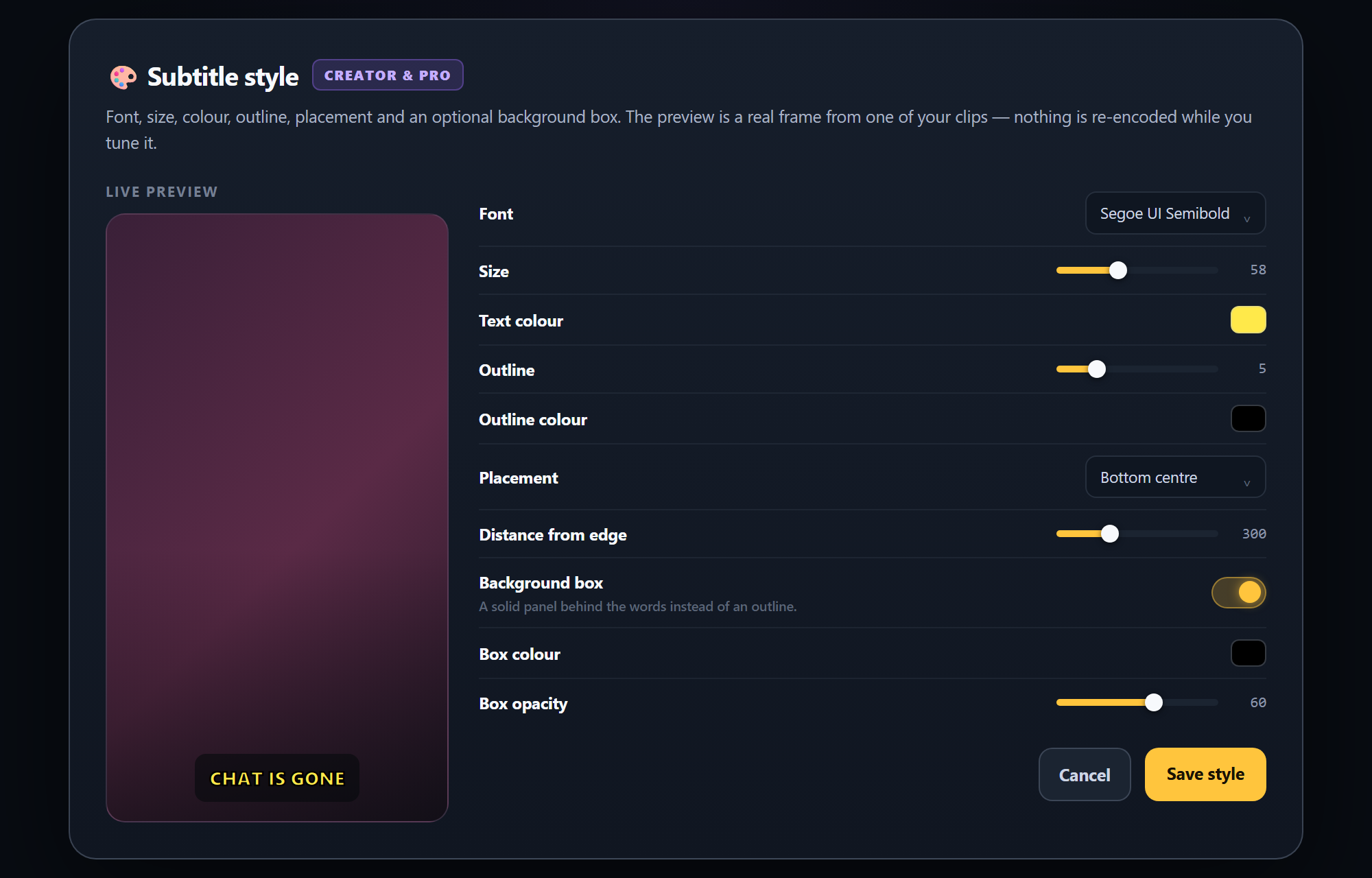
Subtitle style
Subtitle style panel with font, size, colour, outline and placement controls

Change the look

CREATOR & PRO

Give the captions your own look: typeface, size, colour, outline weight and colour, where they sit in the frame and how far from the edge.

  • Font, size and text colour
  • Outline weight and outline colour
  • Nine placement positions, plus distance from the edge
  • Solid background box with its own colour and opacity
  • Live preview on a real frame — nothing is re-encoded while you tune it
Every plan burns subtitles into the clip. Creator and Pro add the editor — correcting the words and changing how the subtitles look.
TITLES AND METADATA

The AI writes one thing: the title of a clip you approved

When you approve a clip, its transcript and a short chat summary are sent off so a title, a description and hashtags can be written for it. Your video never leaves your computer.

  • Titles written on approval, from what actually happens in the clip
  • Description and hashtag suggestions
  • Copy and paste them into the platform yourself
  • No AI scoring, no quality grade — that call is yours at the queue
Jolnova does not publish to any platform on your behalf. You download the finished clip and post it yourself.
Clip detail
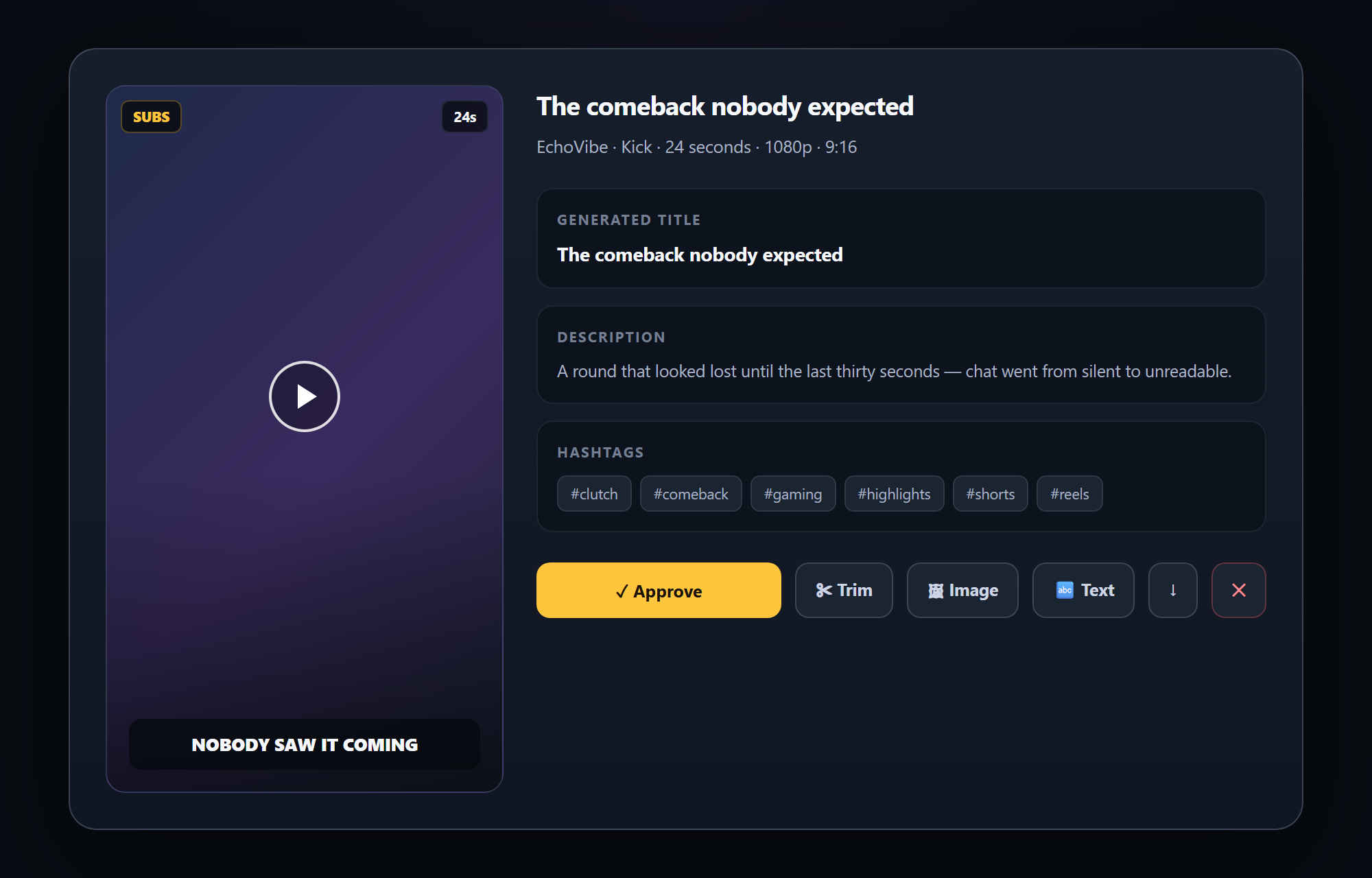
Clip detail with generated title, description and hashtags
CLIP BRANDING

Decide what is written on your clip

Two things can appear on a finished clip, and both are switches rather than upgrades: the Jolnova watermark and the platform badge with the channel name.

  • Watermark on or off on every paid plan
  • Hide the platform name and channel line — Creator and Pro
  • The badge is drawn by Jolnova, so removing it leaves the picture untouched
  • Both preferences can be stored inside a clip preset
During the free trial the Jolnova watermark stays on. Every paid plan can switch it off in Settings.
Clip branding
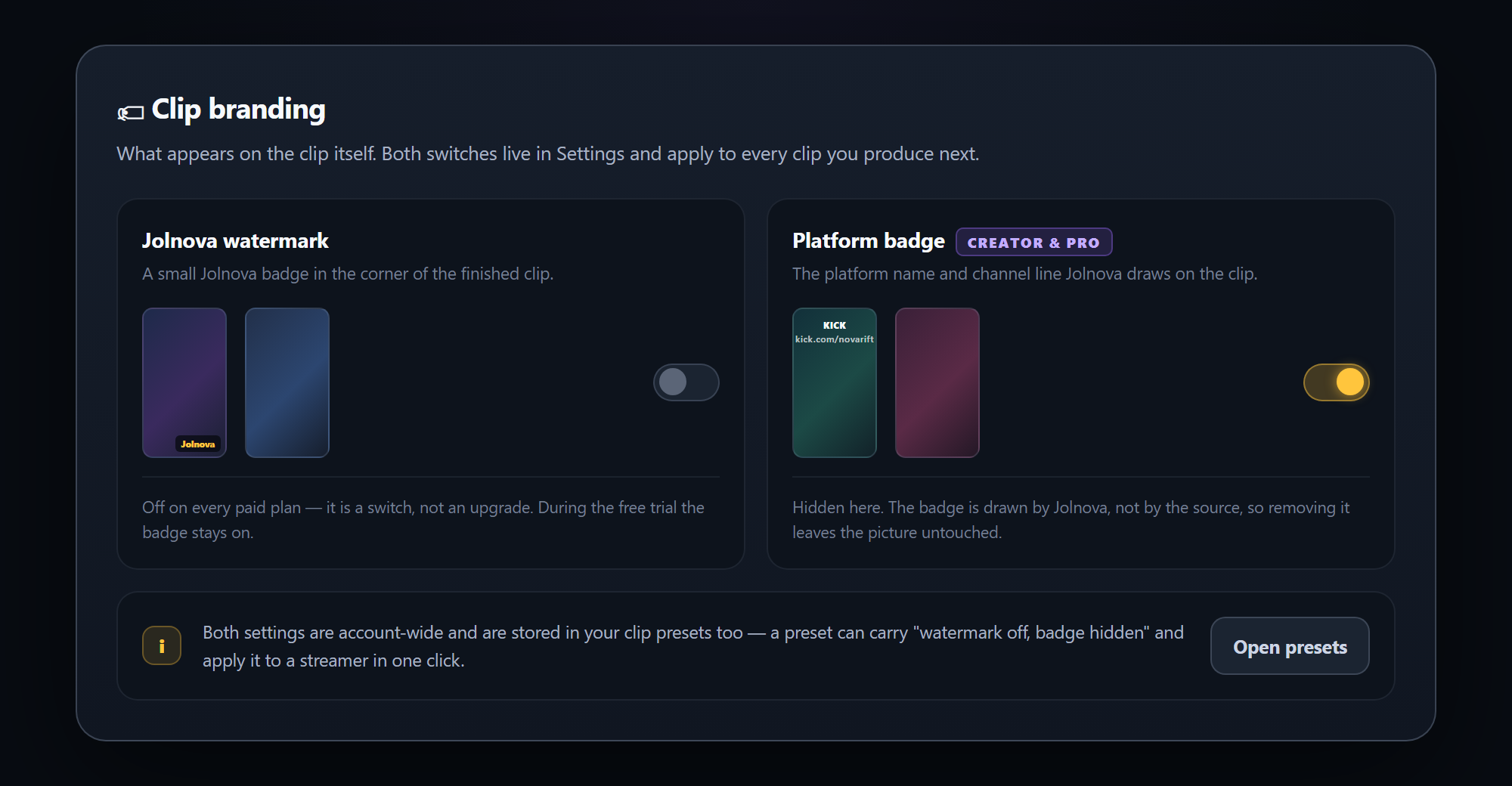
Clip branding settings with watermark and platform badge switches
TEXT OVERLAY

Put your own line on the video

Type the text, choose where it sits, how big it is, what colour it is and whether it gets a solid background behind it. The text is burned into the video so it survives re-uploads.

  • Top, middle or bottom placement
  • Size and colour presets
  • Shadow or a solid box behind the text
  • Live preview before you apply it
  • Remove it later and the clip returns to its original state
Text overlay is available on every plan, including the free trial.
Text overlay
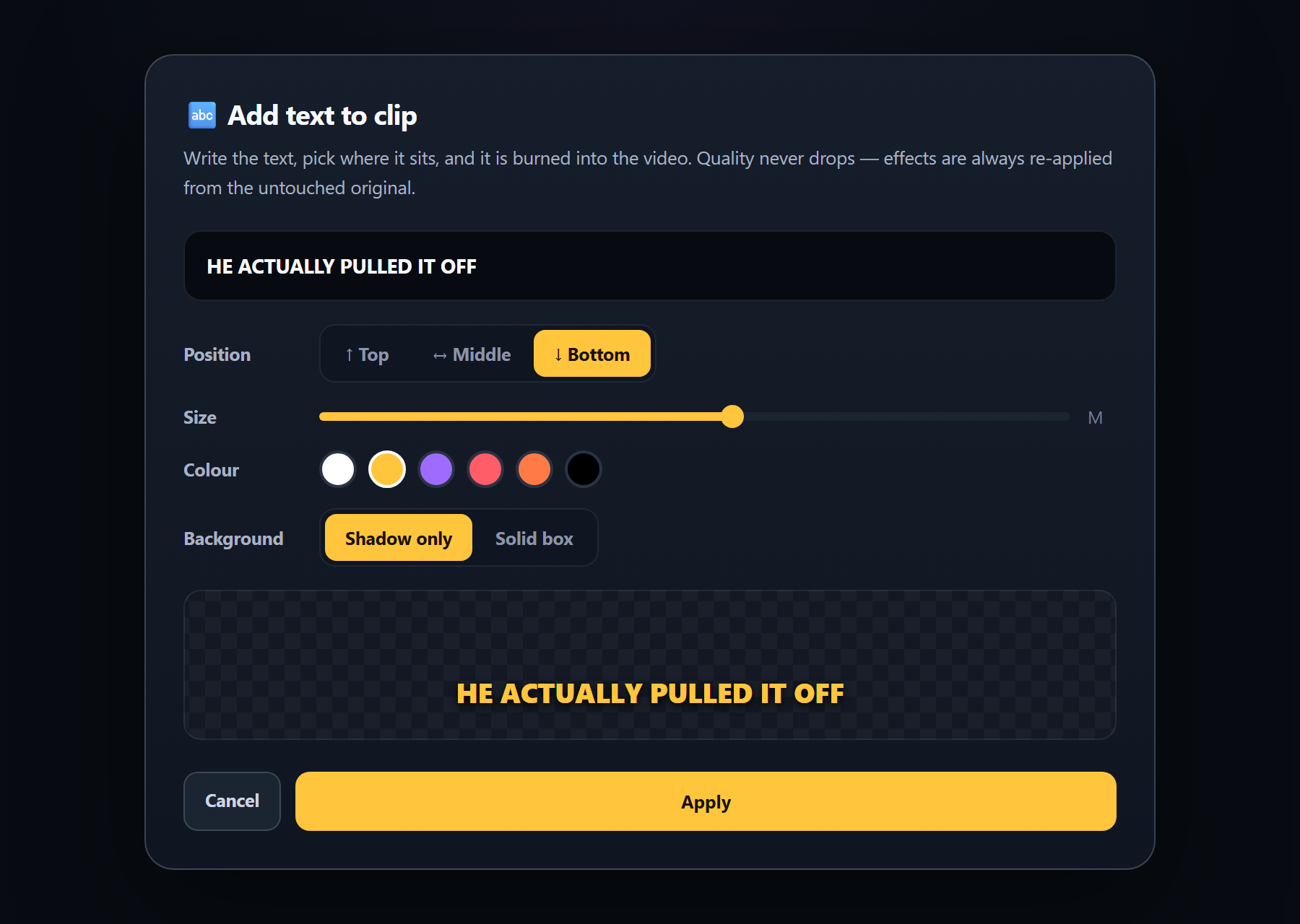
Text overlay editor with position, size, colour and background controls
IMAGE OVERLAY

Drop a logo anywhere on the frame

Pick a PNG or JPG, drag it where you want it and resize it from the corner. Applying burns it into the clip; removing it gives you the clean video back.

  • Drag to position, corner handle to resize
  • Preview on the actual frame
  • Add and remove as many times as you like
  • Every effect is re-applied from the untouched original — no generation loss
Nothing is stacked on top of an already-compressed export, so a clip you edited five times looks like a clip you edited once.
Image overlay
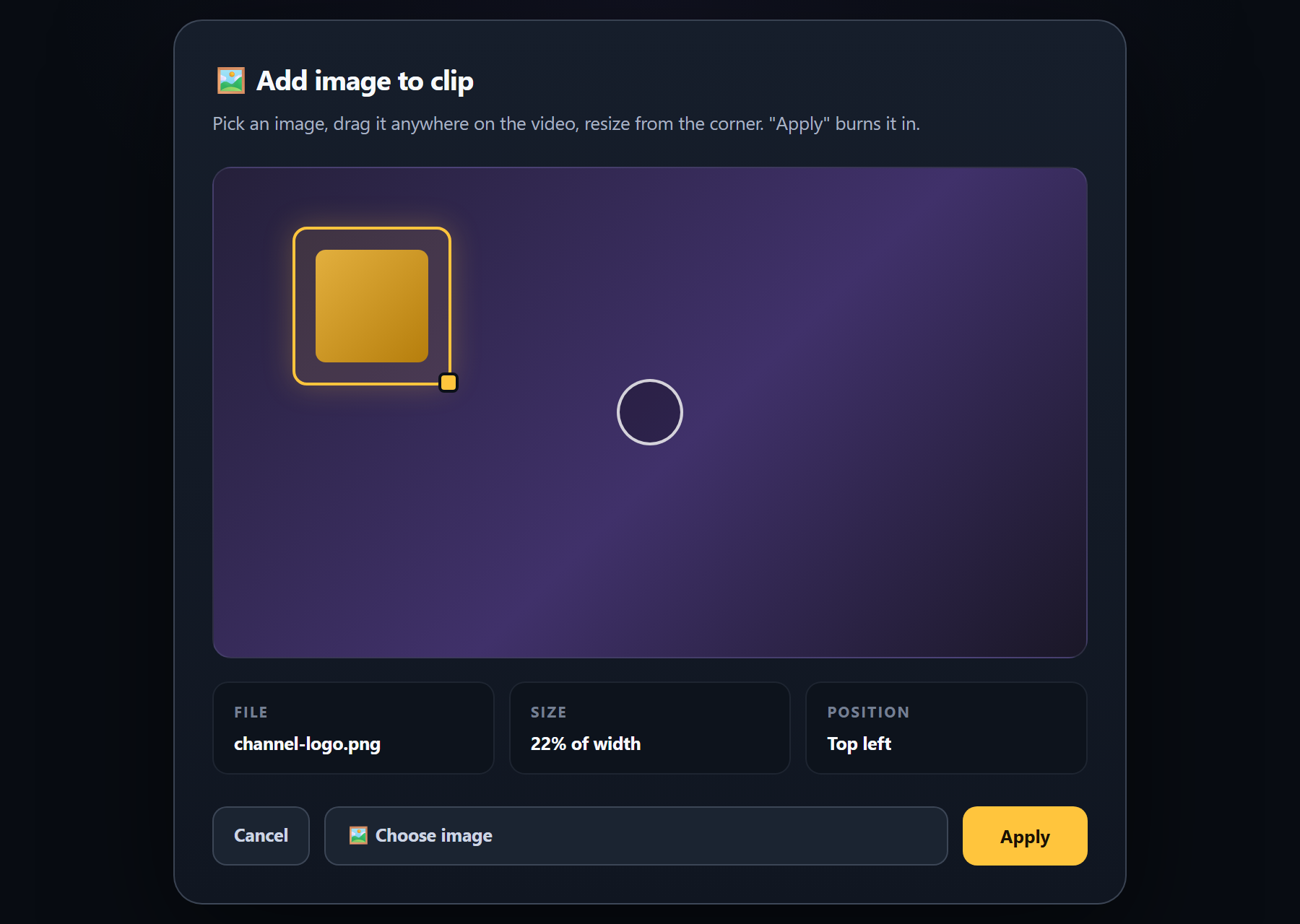
Image overlay editor with a logo being dragged and resized on the video
TRIM AND CONTEXT

Cut the dead air off both ends

Detection gets you close; trimming gets you exact. Drag the start and end handles until the clip opens on the moment itself, and see the resulting length as you go.

  • Separate start and end handles
  • Selected duration shown while you drag
  • Frame-accurate cut, re-encoded once
  • Clip Context pulls extra seconds back from the original recording — ±3 sec on Starter, ±7 on Creator, ±10 on Pro
  • Trim again later — you are always cutting from the original
Trim clip
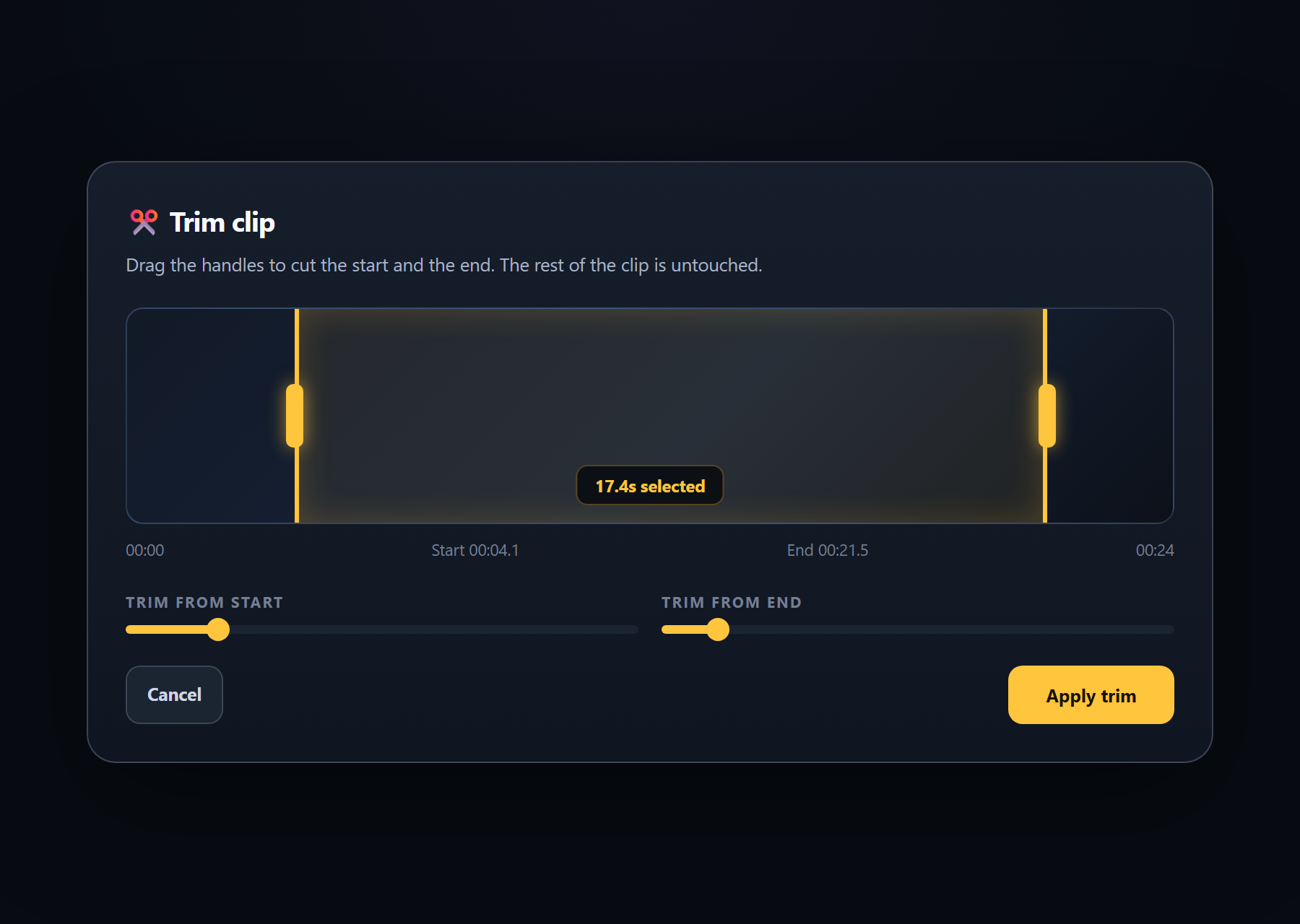
Trim editor with start and end handles over the clip timeline
EXPORT

Download where you actually want it

Approved clips save at full quality to a folder you choose. Save one, or send an entire section to a folder in one action.

  • Watermark on or off — your choice on every paid plan
  • Choose the destination folder yourself
  • Save a single clip or a whole section
  • Your originals stay untouched
Export resolution follows your plan and your source: 720p on Starter, 1080p on Creator, and 4K on Pro when the source is 4K. Twitch and Kick broadcast at 1080p at most.
Clip output
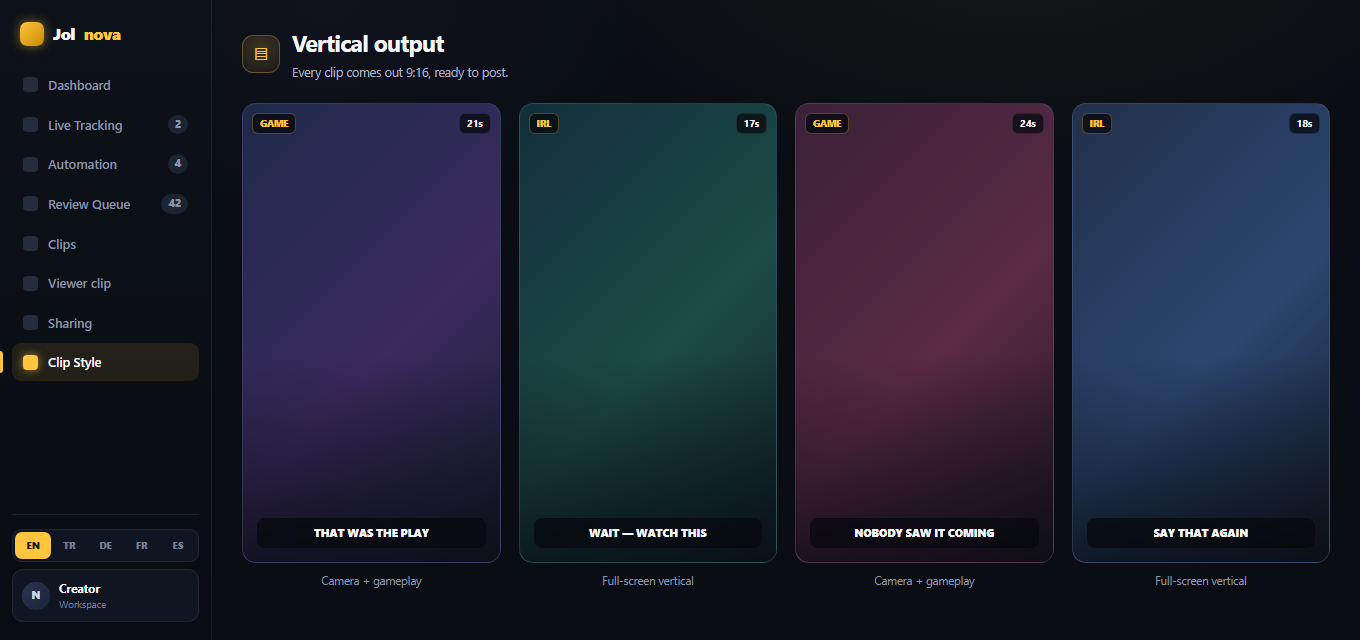
Vertical 9:16 clip output examples
SETTINGS

Tune it once, then leave it alone

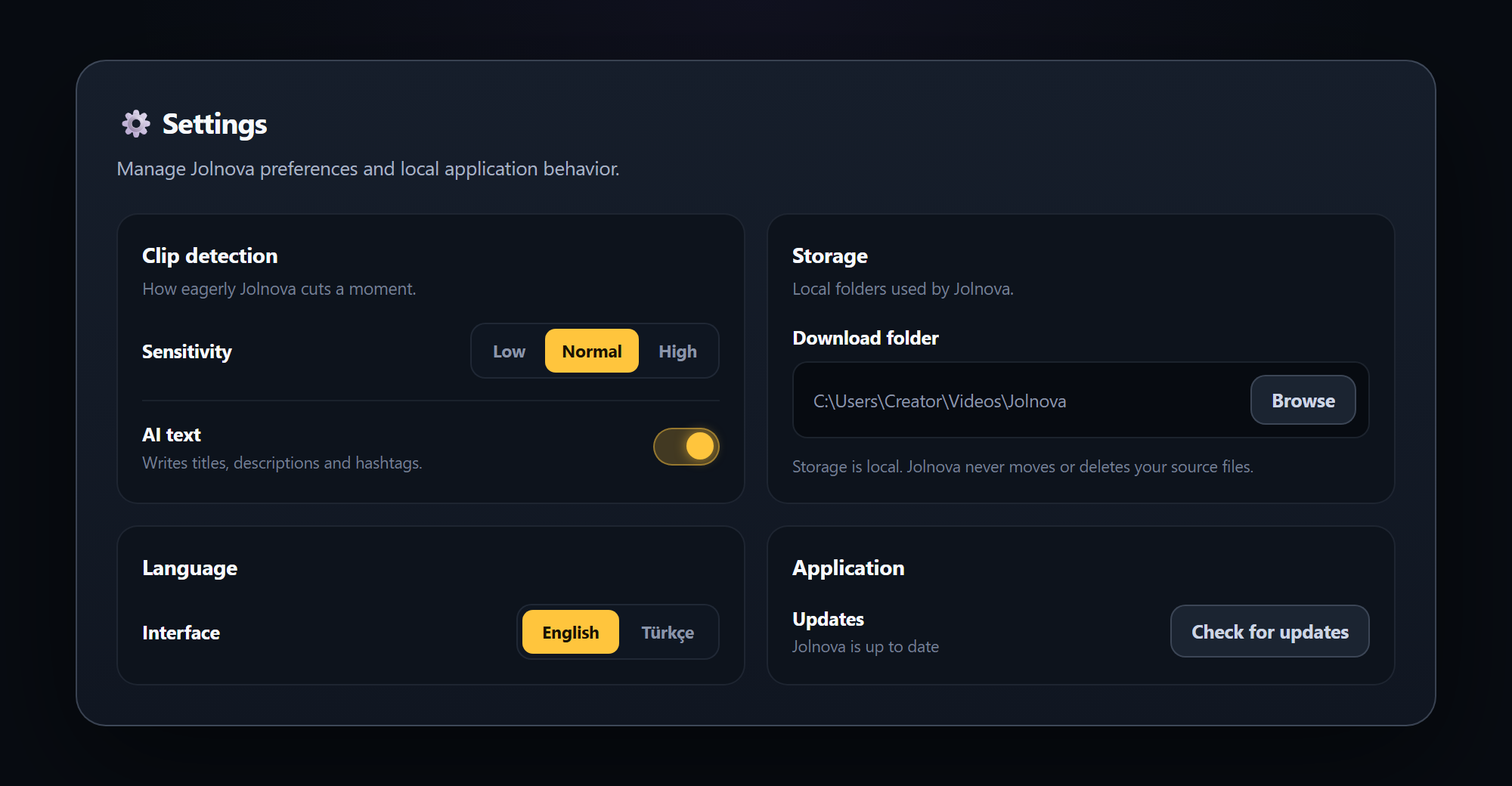
Decide how eagerly Jolnova cuts a moment, where finished clips are saved and which language the app speaks. These settings live on your machine.

  • Detection sensitivity: Few, Balanced or Many
  • Your own download folder
  • Cleanup budget for recordings, in GB
  • English or Turkish interface
  • Version and update check
Settings
Settings page with detection, storage, language and application options
ALSO INCLUDED

Smaller things that add up.

English or Turkish

Switch the whole interface between EN and TR at any time.

Runs in the background

Close the window and tracking keeps going. Reopen it whenever you want to review.

Automatic updates

New versions are detected and installed from inside the app.

Account protected

Sign-in is required and verified on every launch, so a copied install is not usable.

Per-source cleanup

Remove every clip from a single source without touching the rest.

Analytics on your own output

See how many clips were produced, approval rate and platform split — from your real data.

WHAT JOLNOVA DOES NOT DO

New in this version.

Three additions that change what you can do with a clip.

Viewer clips become reels

Paste a Kick or Twitch clip link and it is turned into a vertical reel exactly as it was clipped — camera placement, subtitles, audio, export. No moment search: someone already decided that moment was good.

Sports

Give it a match or a highlights video. Goals are found from the commentary — including the ones announced only by a new scoreline or a turn of phrase — and each clip starts far enough back to hold the whole build-up, with the scoreboard placed where a phone can read it.

Scheduled sharing

Connect a YouTube account, pick a day and a time on the calendar, and approved clips go out on their own. The file uploaded is the clip as produced — no re-encoding, no quality loss.

Just as useful to know.

Two things people expect from a clipping tool that this one deliberately does not have.

No AI moment scoring

No clip is graded by a language model. Detection is a signal-based cut and the decision at the review queue stays yours.

Nothing leaves without your approval

A clip is only uploaded after you approve it and schedule it yourself. Nothing is posted automatically from the review queue.

No montage or compilation

Clips are produced one at a time. There is no feature that stitches several moments into a single longer video.

See it running on your own sources.

Install Jolnova and add a channel — the first clips arrive without any further work.

The free trial runs for 3 days or 50 clips, whichever comes first, with the Jolnova watermark and 720p export.